Free connector for AI assistants
Run Google Ads from your AI assistant. You approve every change.
Google Ads MCP is a free connector that lets your AI assistant, such as Claude or ChatGPT, read your Google Ads account, audit it for wasted spend and broken conversion tracking, and change it only after you approve each step.
Sign in with Google and choose your accounts. Your assistant asks for your approval before it acts, unless you tell it not to.
Validated by Google. Nothing was changed.

{
  "account": "1234567890",
  "operation_count": 25,
  "operations": [
    "campaignBudgetOperation:create",
    "campaignOperation:create",
    "campaignCriterionOperation:create",
    "assetOperation:create",
    "assetGroupOperation:create",
    "assetGroupAssetOperation:create",
    "campaignAssetOperation:create"
  ],
  "adjustments": [],
  "result": "Validated by Google. Nothing was changed."
}How to connect it, step by step
Add the connector first, then watch it and follow the steps. The same name and URL work in Claude and in ChatGPT.
Add the connector
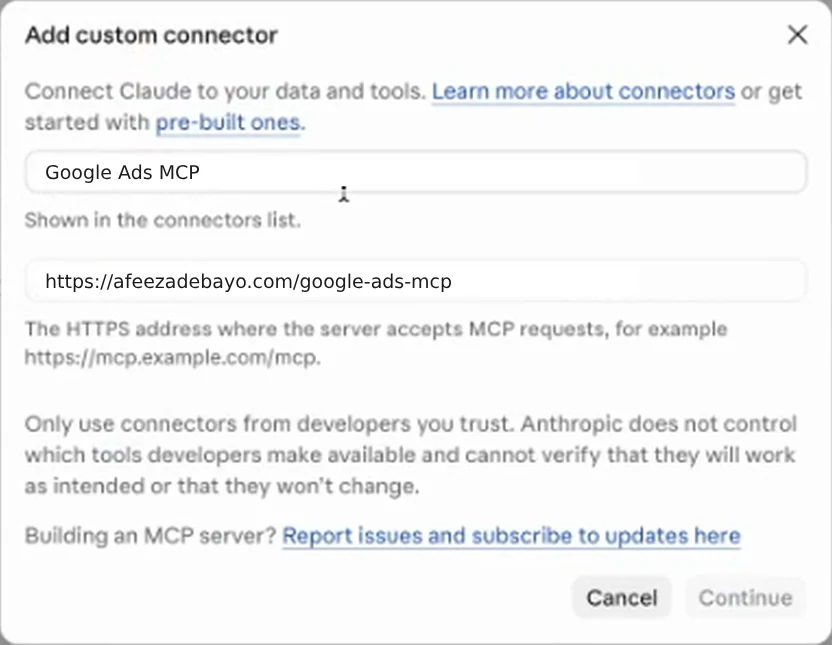
Settings›Connectors›Add custom connector
- Name
- Google Ads MCP
- URL
https://afeezadebayo.com/google-ads-mcp
Then choose Add, and Connect. You can also open Add custom connector from the + menu in a chat, as the video shows. In ChatGPT, turn on Developer mode in Settings first, then create a connector with the same name and URL. ChatGPT needs a paid plan for this.
- 1
Add the connector
Paste the name and URL above, then choose Add, and Connect.
- 2
Sign in with Google
Use the Google account that can reach your Google Ads accounts, and leave the Google Ads permission ticked.
- 3
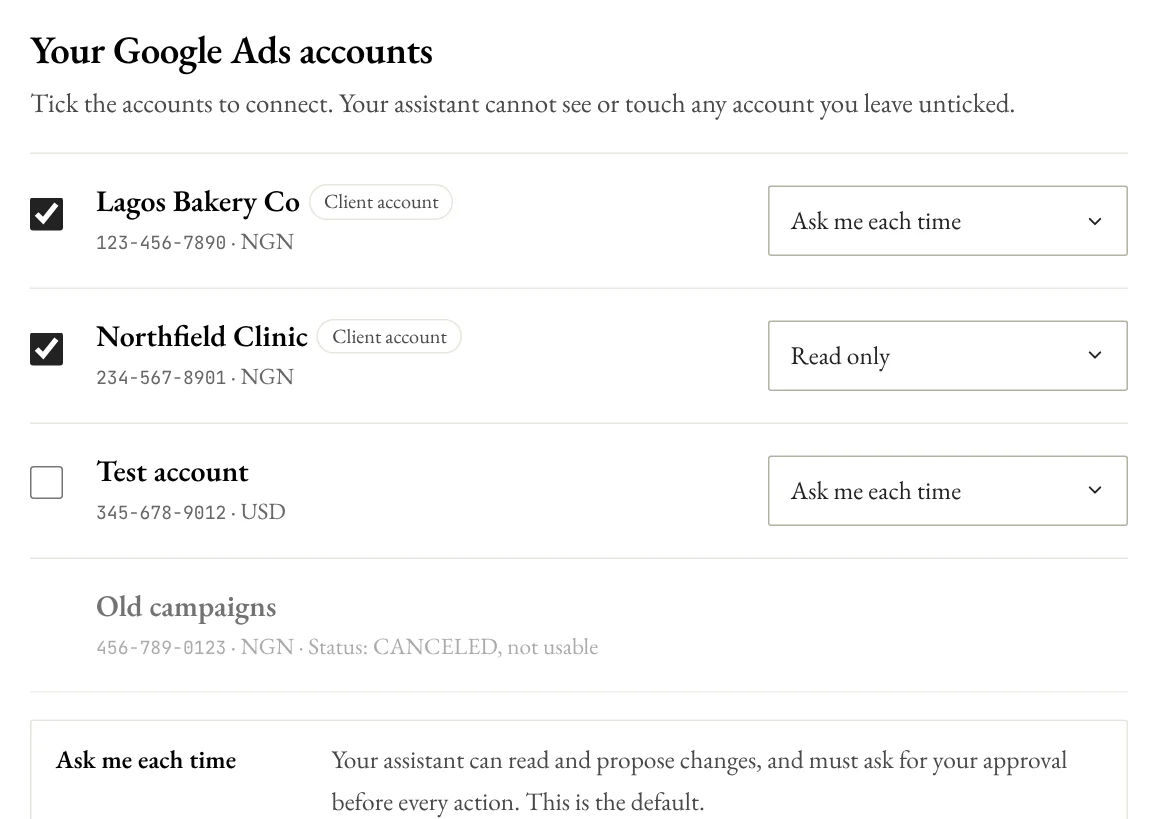
Choose your accounts and how much to allow
Tick the accounts your assistant may use. For each one, choose Ask me each time (the default), Always allow or Read only. Your assistant cannot change these settings.
- 4
Ask your first question
A good one: audit my account, starting with conversion tracking. Your assistant asks before it changes anything.
You need a Google Ads account that is active. Google refuses requests for accounts that were cancelled or never finished set-up, and the connector marks those as unavailable. Setup screens differ between assistants and change over time. If yours looks different, search its settings for custom connector or MCP.
What it does for your account
Four jobs, in the order most accounts need them.
It finds what is wrong
One audit checks for wasted search terms, campaigns that run out of budget while converting, weak or disapproved ads, device skew and conversion tracking. It ranks the findings, shows the evidence behind each, and can write a plain summary you send to your team or client.
It explains what changed
Compare any period with the one before, split results by device, hour or day, and see who edited the account in the last 29 days.
It makes the change
Add negative keywords, move a budget by a safe step, pause what loses, write new ads, and build Search or Performance Max campaigns that arrive paused and ready for review.
It gives Google better data
Create conversion actions, get the site tags to install, and upload offline leads and sales so Google can learn from what really happened after the click.
It checks your conversion tracking before it touches a bid
Smart Bidding spends towards whatever your account counts as a conversion. If that count is wrong, every optimisation makes the wrong thing cheaper. So the connector starts by checking:
- Is at least one conversion action marked primary?
- Does every enabled action actually record conversions?
- Are leads counted once per click, or can one person count five times?
- Do purchase actions carry a value, so return on ad spend means something?
- Is auto-tagging on, so Google can match clicks to conversions?
- Are two primary actions counting the same event?
Only then does it move on to search terms, budgets and bids. If tracking is broken, it tells you that first, and how to fix it.
Your assistant proposes. You approve.
A tool that can spend your money needs rules you can read. These are the connector’s.
You can review or change these choices at any time on your own settings page.
You choose the accounts
After you sign in with Google, you tick which of your Google Ads accounts your assistant can use. It cannot see or touch the others.
It asks first, by default
For each account the default is Ask me each time: your assistant must get your approval before every action. You can switch an account to Always allow or Read only on your settings page, which your assistant cannot change.
Every change is a dry run first
Google validates the request and changes nothing. Your assistant shows you the plan, and a change can only be applied if the identical request passed a dry run in the last 30 minutes.
Nothing goes live by accident
New campaigns, ad groups and ads are always created paused, and turning one on is a separate change. Removing anything needs an extra flag.
Some things are impossible
Granting access to other people, linking accounts and changing billing are blocked.
What you can ask
Which search terms spent money in the last 30 days without a single conversion?
Is my conversion tracking set up properly? Check it before we change any bids.
Compare this month with last month and tell me what changed, and why.
Which campaigns lose impressions to budget while still converting?
Build a Search campaign for these keywords, paused, with a daily budget of NGN 5,000, and show me the dry run.
Upload these CRM leads as offline conversions, matched by email, and show me the dry run first.
Twenty-five tools, grouped by job
Your assistant picks the right tool for each question. You never have to name them.
| Job | Tools | What they do |
|---|---|---|
| Look | ads_list_accounts ads_select_account ads_account_info ads_run_gaql ads_describe_fields | List your connected accounts, switch between them, and query anything the Google Ads API exposes. |
| Report | ads_performance_report ads_conversion_report ads_change_history | Performance by campaign, ad group, ad, keyword, search term, device or hour, with period comparison, and who changed what. |
| Diagnose | ads_optimization_audit ads_conversion_health | Ranked findings with evidence, a summary you can send on, and a check that your conversion tracking can be trusted. |
| Optimise | ads_set_status ads_update_budget ads_update_bidding ads_add_keywords ads_add_negative_keywords | Pause, enable or remove, change a budget or bidding strategy, add keywords and negatives. |
| Build | ads_create_search_campaign ads_create_pmax_campaign ads_create_responsive_search_ad ads_upload_image_asset ads_get_recipe ads_mutate | Create campaigns, ads and assets. The general tool covers any other campaign type, with the same safeguards. |
| Conversions | ads_create_conversion_action ads_get_conversion_tag ads_upload_click_conversions | Set up tracking, get the site tags, and upload offline conversions. |
| Your data | ads_disconnect | Revoke your Google sign-in and delete everything stored about you. |
Search and Performance Max campaigns are checked with Google’s own validator before anything is applied. Display, Video and Shopping use recipes you validate before applying them. Demand Gen and App campaigns have no tested recipe yet.
What this app does with your Google data
Short and specific, because you are trusting it with a live ad account.
What it can read
Google Ads, through one Google permission.
- Campaigns, spend, conversions and settings for the accounts you connect.
- Your email address and Google account ID, so it can recognise your connection.
- Google offers one permission for its API, and it covers both reading and changing, so the limits are rules built into this connector.
What it can change
Only what you allow, account by account.
- On Read only accounts, nothing.
- On Ask me each time accounts (the default), it can propose changes and must ask you before each one.
- On Always allow accounts, it can make changes without asking, only if you choose that.
- Access, linking and billing changes are never possible.
What it stores
Only what it needs to keep working.
- An encrypted Google credential.
- Your email address, Google account ID and the accounts you connected.
- The access you chose for each account.
- An activity log kept for 30 days: time, tool, account ID, operation types, and whether it was a dry run or applied.
What it never stores
Your campaign data passes through and is not saved.
- Reports, keywords and conversion data are not kept.
- Offline conversions go to Google with emails and phone numbers hashed first.
What you control
You can leave at any time, and it cleans up after itself.
- Change an account’s access, or disconnect and delete everything, on your settings page.
- Run the
ads_disconnecttool to revoke your sign-in and delete everything stored about you. - Or revoke access at myaccount.google.com/permissions, or email me.
- Unused connections are deleted automatically after 90 days.
Google Ads MCP’s use and transfer to any other app of information received from Google APIs will adhere to the Google API Services User Data Policy, including the Limited Use requirements.
Questions
Do I need a Google Ads account?
Yes, an active one. You sign in with Google and the connector lists the accounts your login can reach, including client accounts under a manager account. You can connect as many of them as you like. Accounts that were cancelled or never finished set-up appear as unavailable, because Google refuses requests for them. A new account has to finish set-up in Google Ads before it becomes usable.
Can it spend my money without asking?
Not by default. For each account you choose Ask me each time (the default), Always allow or Read only, on a settings page your assistant cannot change. With Ask me each time your assistant must get your approval before every action, and every change is a dry run first. New campaigns start paused, and access, linking and billing changes are blocked.
Which campaign types can it build?
Search and Performance Max have dedicated builders, checked with Google’s validator. For Display, Video, Shopping, sitelinks and negative lists it gives your assistant recipes and a general tool, and you validate each build before applying it. Demand Gen and App campaigns have no tested recipe yet. Reports cover every campaign type.
How is it different from the Keyword Planner MCP?
The Keyword Planner MCP researches keywords and never changes anything. Google Ads MCP works on your own account: reports, audits, conversions and, only with your permission, changes. They are separate connectors, and you can use both.
Which AI assistants does it work with?
It uses the standard remote MCP connector protocol with Google sign-in, and its sign-in accepts Claude and ChatGPT. Other assistants that support custom connectors may work too, but I have not tested them. Setup screens differ between assistants and change over time, so the steps above are a guide.
Is it free?
Yes, it is free to use. Requests are rate limited per person, and Google applies its own daily limits to the Google Ads API, so very heavy use may be paced. The ad spend itself is paid to Google, as usual.
Is my data stored?
Your Google credential is stored encrypted, with your email, connected accounts and access choices, so your assistant can work between chats. Campaign data, reports and keywords are not stored: they pass through to answer you. A 30-day activity log records which tool ran, on which account, and whether it was a dry run or applied. The privacy policy lists everything.
How do I disconnect and delete my data?
Use the disconnect button on your settings page, or ask your assistant to run ads_disconnect with confirm set to true. That revokes your Google sign-in and deletes everything stored about you. You can also revoke access at myaccount.google.com/permissions, or email hello@afeezadebayo.com. If you stop using it, everything is deleted automatically 90 days after your last use.
Who built it?
I did. I’m Afeez Adebayo, an SEO and growth marketer in Lagos with more than ten years in marketing and growth. This is an independent project, not affiliated with Google, Anthropic or OpenAI. If you find a fault or want a feature, email me.
Find out what your Google Ads account is wasting
Connect it, pick your account, and start with a read-only audit. Nothing changes unless you switch it on.